

Step by step instructions and screenshots on setting up your self hosted email on an iOS, Apple, iPhone, iPad device.
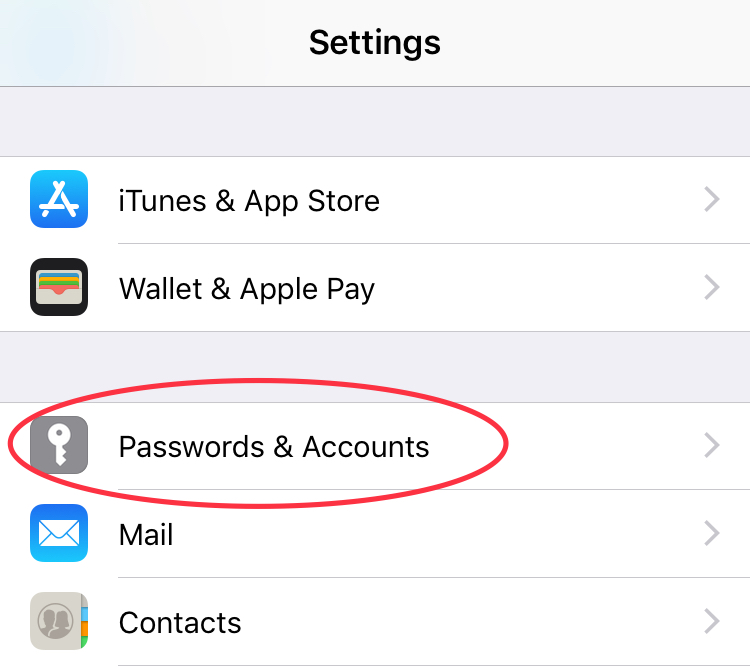
- Go to Settings
- On the Settings screen, tap Passwords & Accounts ****
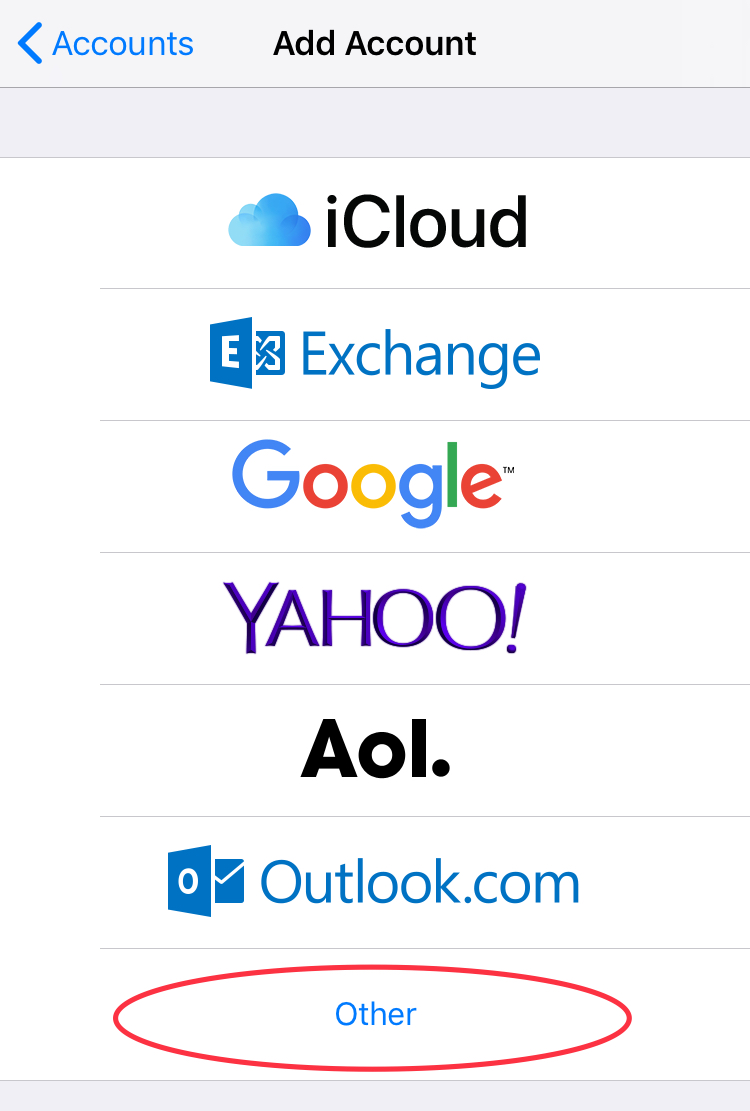
- Under Accounts tap Add Account
- Tap Other (bottom of list) **
**
- Tap Add Mail Account
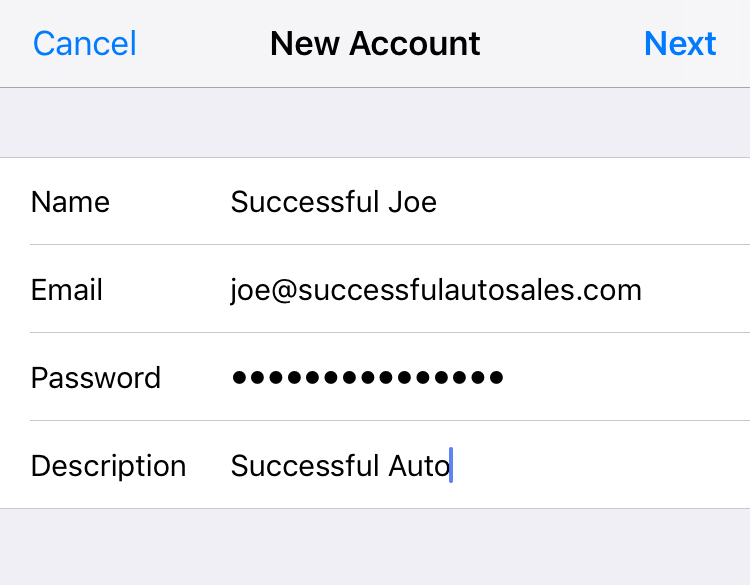
- Enter your Name, Email Address, Password, and Description for your email account. Tap Next **
**
- Tap the POP tab
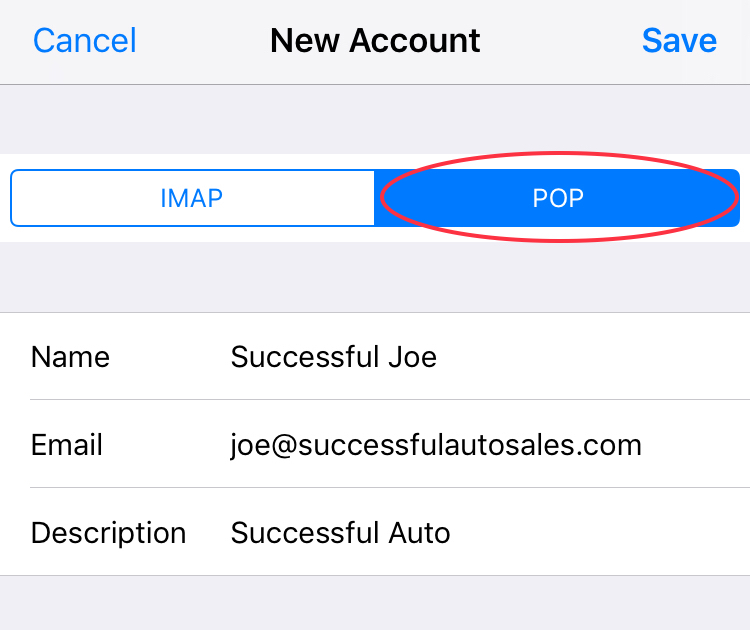
- Use the settings below for INCOMING MAIL SERVER (POP) Host Name: mail.kgi.co User Name: Enter your full email address Password: Enter your email account password \* If you choose IMAP the Port# needs to be 993
- Use the settings below for OUTGOING MAIL SERVER (SMTP) Host Name: mail.kgi.co User Name: Enter your full email address Password: Enter your email account password
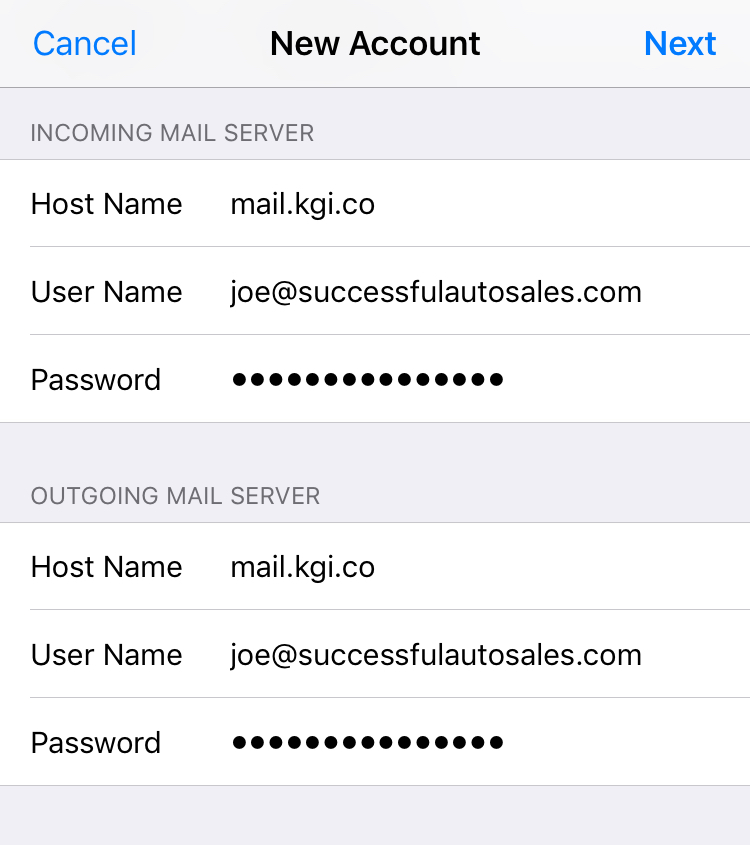
- Tap SAVE and then it will start to verify. This may take over 60 seconds, just wait it out.
- You have completed the setup!
Advanced Settings
- Go back to Settings > Passwords & Accounts > select your new Mail account > click Advanced
- Choose to remove Deleted Messages after a certain period of time
- Choose to Delete from Server after Seven days